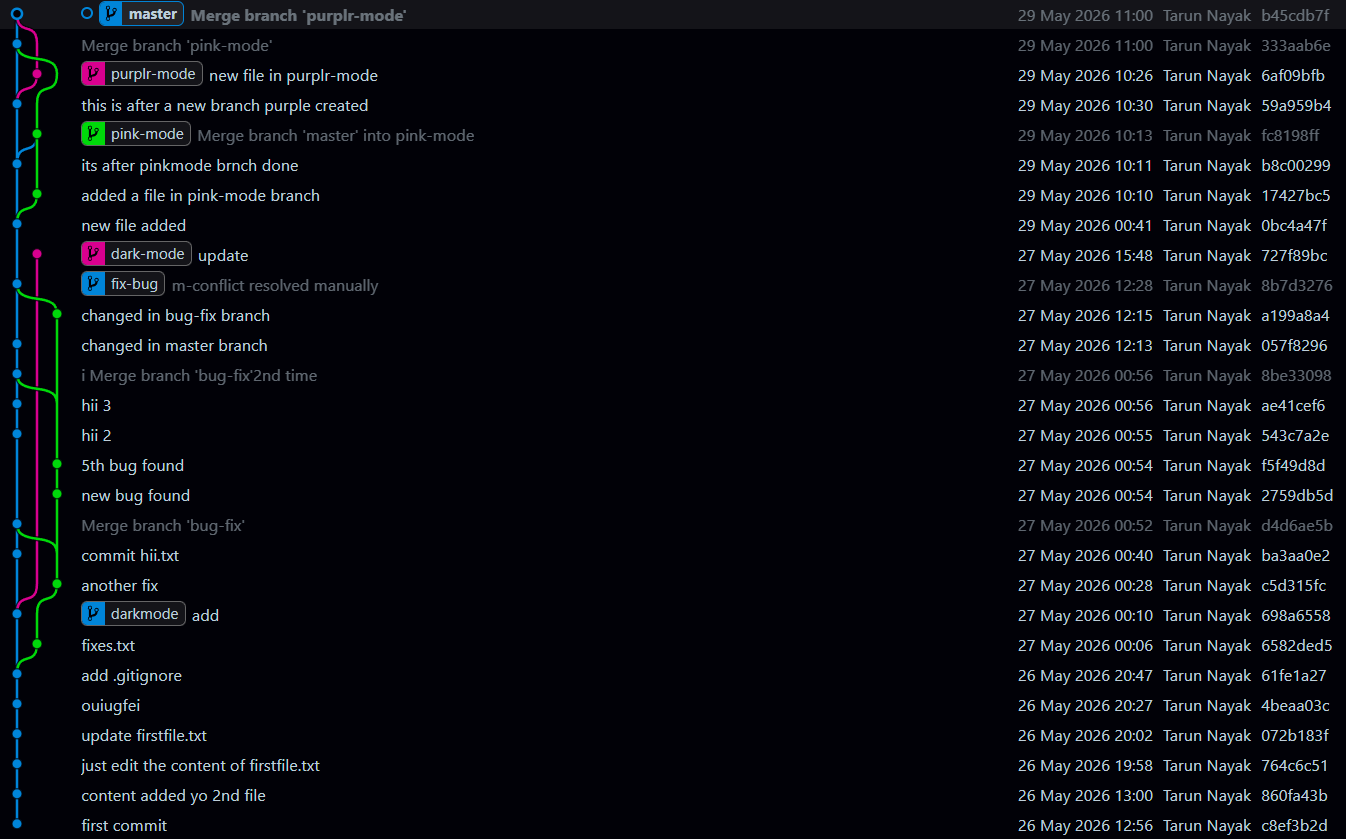
Understanding Git Branches, Merges, and GitHub Workflows
From Your First Commit to Advanced Git Workflows: Branching, Merging, Conflict Resolution & Collaboration

👨💻 Tarun Nayak | Tech Explorer | 3rd Year CSE Student | Future Cloud & DevOps Engineer I'm Tarun Nayak, a 3rd-year Computer Science student with a passion for building a career in the IT sector from the ground up. 🚀 I write about my journey in tech — from understanding the basics of programming and data structures to diving into Cloud Computing, DevOps, and Web Development. Through this blog, I aim to share what I learn, document my projects, and help others who are starting from scratch just like I did. 📌 Interests: AWS & Cloud Fundamentals ☁️ Full-Stack Web Development 🌐 DevOps Tools & Practices 🛠️ Learning by Doing: Real Projects & Use-Cases 📈 Preparing for a future in the IT industry, one step at a time. Let’s grow together. 💻✨
What is Git ?
Git is a version control system that allows you to track changes to your files and collaborate with others. It is used to manage the history of your code and to merge changes from different branches.
OR
Git is a distributed Version Control System that tracks versions of files. It is often used to control source code by programmers collaboratively developing software.
It helps developers:
Track file changes
Maintain version history
Create branches
Merge code safely
Revert to previous versions
Collaborate with multiple developers
What is VCS (Version Control System)
It is used to manage the history of your code . They allow you to track changes to your files & collaborate with others.
It is essential for software development.
Consider version control as a checkpoint in game. You can move to any time in the game and you can always go back to the previous checkpoint. This is the same concept in software development.
What is GitHub ?
Github is a web-based hosting service for Git repositories. Github is an online platform that allows you to store and share your code with others. It is a popular platform for developers to collaborate on projects and to share code. It is not that Github is the only provider of Git repositories, but it is one of the most popular ones.
Difference Bet Git & GitHub
Git is the tool that manages your code versions locally, while GitHub is the platform that stores and shares those Git repositories online.
| Git | GitHub |
|---|---|
| Version Control System | Cloud Hosting Platform |
| Installed on Local Machine | Runs on the Internet |
| Tracks File Changes | Stores Git Repositories |
| Works Offline | Requires Internet for Remote Operations |
| Manages Branches & Commits | Manages Collaboration & Code Sharing |
Git is a version control system that is used to track changes to your files. It is a free and open-source software that is available for Windows, macOS, and Linux. Remember, GIT is a software and can be installed on your computer.Github is a web-based hosting service for Git repositories. Github is an online platform that allows you to store and share your code with others. It is a popular platform for developers to collaborate on projects and to share code. It is not that Github is the only provider of Git repositories, but it is one of the most popular ones.
Repository :
A repository is a collection of files and directories that are stored together. It is a way to store and manage your code. A repository is like a folder on your computer, but it is more than just a folder. It can contain other files, folders, and even other repositories. You can think of a repository as a container that holds all your code.
There is a difference between a software on your system vs tracking a particular folder on your system. At any point you can run the following command to see the current state of your repository:
Part 1: Git Fundamentals - Working Locally
. Git Architecture
Working Directory
       ↓
git add
       ↓
Staging Area
       ↓
git commit
       ↓
Local Repository (.git)
Working Directory
Files currently being edited.
Staging Area
Temporary area before commit.
Local Repository
Stored inside .git.
. Install Git
git --version
. Configure Git
git config --global user.name "Tarun Nayak"

git config --global user.email "mailmetarun20@gmail.com"
Verify:
git config --list
. Create First Repository
Create folder:
mkdir gitlearning
cd gitlearning
Initialize Git:
git init
Creates:
.git
The .git folder contains:
Commit history
Branches
Configuration
References
. Create Files
PowerShell:
ni firstfile.txt
Git Bash:
touch firstfile.txt
. Check Status
git status
File States:
Untracked
firstfile.txt
Git sees file but does not track it.
. Add File to Staging Area
git add firstfile.txt
or
git add .
. Commit Changes
git commit -m "first commit"
Commit = Snapshot of project.
1. View Commit History
git log
Compact:
git log --oneline
Exit Log:
q
1. Modify Existing Files
Edit:
firstfile.txt
Check:
git status
Shows:
modified
Stage:
git add firstfile.txt
Commit:
git commit -m "updated firstfile"
. Branching
View Branches:
git branch
Create Branch:
git branch bug-fix
Switch Branch:
git checkout bug-fix
or
git switch bug-fix
Create + Switch:
git switch -c bug-fix
. Branch Isolation
Every branch has its own history.
Example:
main
contains:
Hello Main
and
bug-fix
contains:
Hello BugFix
Switching branches changes files automatically.
. Merge Branches
Move changes into current branch.
git checkout main

git merge bug-fix
. Merge Conflicts
Occurs when:
Same file
Same line
Changed in multiple branches
Resolve manually.
Then:
git add .

git commit
. Rebase
Purpose:
Keep history clean.
git checkout feature

git rebase main
Before:
A---B---C
 \
  D
After:
A---B---C---D'
Important:
Rebase brings latest main changes into your branch.
. Frequently Used Local Commands
git init
git status
git add .
git commit -m "where you can write the message"
git log
git log --oneline
git branch
git switch
git checkout
git merge
git rebase
git restore
Example 1: Complete Local Git Workflow (Part 1)
Step 1: Create Project
mkdir gitlearning
cd gitlearning
Step 2: Initialize Git Repository
git init
Git creates:
.git
Step 3: Configure Git
git config --global user.name "Tarun Nayak"

git config --global user.email "mailmetarun20@gmail.com"
Verify:
git config --list
Step 4: Create Files
ni firstfile.txt
ni secondfile.txt
Check:
git status
Output:
Untracked files:
firstfile.txt
secondfile.txt
Step 5: Stage Files
git add .
Check:
git status
Output:
Changes to be committed
Step 6: First Commit
git commit -m "first commit"
Check History:
git log --oneline
Output:
c8ef3b2 first commit
Step 7: Modify Existing File
Edit:
firstfile.txt
Check:
git status
Output:
modified: firstfile.txt
Stage:
git add firstfile.txt
Commit:
git commit -m "updated firstfile"
Step 8: Create Branch
git branch bug-fix
View:
git branch
Output:
* main
bug-fix
Step 9: Switch Branch
git switch bug-fix
Step 10: Create New File in Branch
ni fixes.txt
Stage:
git add .
Commit:
git commit -m "created fixes file"
History:
main
 |
bug-fix
Step 11: Create Sub Branch
git switch -c darkmode
Create:
ni darkmode.txt
Commit:
git add .
git commit -m "dark mode implementation"
History:
main
 |
bug-fix
 |
darkmode
Step 12: Merge Darkmode into Bug-Fix
git switch bug-fix

git merge darkmode
Result:
darkmode.txt available in bug-fix
Step 13: Merge Bug-Fix into Main
git switch main

git merge bug-fix
Result:
fixes.txt available in main
darkmode.txt available in main
Step 14: Create Merge Conflict
Main Branch:
firstfile.txt
Hello Main
Commit.
Bug-Fix Branch:
firstfile.txt
Hello Bug Fix
Commit.
Merge:
git merge bug-fix
Conflict:
<<<<<<< HEAD
Hello Main
=======
Hello Bug Fix
>>>>>>> bug-fix
Resolve manually.
Commit:
git add .
git commit -m "resolved conflict"
Step 15: Rebase Example
Current:
main
A---B---C

purple
A---B---D
Update Main:
git switch main
Modify file:
git commit -m "main update"
Now:
main
A---B---C---E

purple
A---B---D
Rebase:
git switch purple

git rebase main
Result:
A---B---C---E---D'
Purple receives latest main changes.
Step 16: Useful Commands
git status

git log --oneline

git branch

git switch

git merge

git rebase

git restore
Part 2: GitHub & Team Collaboration
1. What is GitHub?
Cloud platform that hosts Git repositories.
Git = Version Control Tool
GitHub = Remote Repository Platform
2. Create GitHub Repository
Example:
gitlearning
Options:
Public
Private
3. Clone Repository
git clone <repository-url>
Example:
git clone https://github.com/username/gitlearning.git
4. Remote Repository
Check Remote:
git remote -v
Output:
origin
Origin = GitHub repository.
5. Push Code to GitHub
First Push:
git push -u origin main
Later:
git push
6. Pull Latest Changes
git pull origin main
Downloads latest code from GitHub.
7. Team Workflow
Always start:
git checkout main

git pull origin main
8. Create Feature Branch
git switch -c feature-login
Never work directly on main.
9. Develop Feature
git add .

git commit -m "implemented login"
10. Push Feature Branch
git push origin feature-login
Updates only:
feature-login
Not main.
11. Rebase with Main
git fetch origin

git rebase origin/main
Keeps branch updated.
12. Create Pull Request
GitHub:
feature-login
        ↓
main
PR:
feature-login → main
Purpose:
Review code
Discuss changes
Approve updates
13. Code Review
Reviewer can:
Approve
or
Request Changes
14. Branch Protection
Protect:
main
Rules:
Require Pull Request
Require Reviews
Restrict Direct Push
15. Protected Branch Example
Local Merge:
git merge feature-login
Allowed.
Push:
git push origin main
Rejected.
Reason:
Main branch protected.
16. Merge Pull Request
GitHub merges:
feature-login
        ↓
main
Safely.
17. Update Local Main
git checkout main

git pull origin main
18. Delete Feature Branch
Local:
git branch -d feature-login
Remote:
git push origin --delete feature-login
19. Complete Real-World Workflow
Pull Latest Main
        ↓
Create Branch
        ↓
Develop Feature
        ↓
Add
        ↓
Commit
        ↓
Push Branch
        ↓
Rebase
        ↓
Resolve Conflicts
        ↓
Push
        ↓
Pull Request
        ↓
Review
        ↓
Merge
        ↓
Pull Main
        ↓
Delete Branch
20. Conclusion
Git manages code locally.
GitHub enables collaboration.
Branches isolate work.
Rebase updates branches.
Pull Requests ensure quality.
Protected branches secure production code.
Example 2: Complete GitHub Team Workflow (Part 2)
Step 1: Create Repository on GitHub
Repository:
gitlearning
Step 2: Clone Repository
git clone https://github.com/Tarun-Kumar-Nayak/gitlearning.git
Enter:
cd gitlearning
Check Remote:
git remote -v
Output:
origin
Step 3: Pull Latest Code
git checkout main

git pull origin main
Purpose:
Always start with latest code.
Step 4: Create Feature Branch
git switch -c brnch3
Step 5: Create File
ni brnch3.txt
Add Content.
Step 6: Stage Changes
git add .
Step 7: Commit Changes
git commit -m "added brnch3 file"
Step 8: Push Branch
git push -u origin brnch3
Result:
GitHub:
main
brnch3
Important:
Only brnch3 updated.
Main unchanged.
Step 9: Main Receives New Changes
Another developer:
git checkout main

git commit -m "new feature"
Pushes:
git push
Main updated.
Step 10: Rebase Branch
Update Branch:
git fetch origin

git rebase origin/main
Purpose:
Bring latest main changes into brnch3.
Step 11: Resolve Rebase Conflicts
If conflict:
git add .

git rebase --continue
Step 12: Push Rebased Branch
git push --force-with-lease
GitHub branch updated.
Step 13: Create Pull Request
GitHub:
base: main

compare: brnch3
Create:
brnch3 → main
Step 14: Branch Protection
Protect:
main
Rules:
Require Pull Request
Require Review
Block Direct Push
Step 15: Attempt Direct Push
git checkout main

git merge brnch3

git push origin main
Result:
Rejected
Reason:
Protected Branch.
Step 16: Merge Through Pull Request
GitHub:
brnch3
     ↓
Pull Request
     ↓
Review
     ↓
Merge
     ↓
main
Approved.
Merged.
Step 17: Pull Latest Main
git checkout main

git pull origin main
Now local main matches GitHub main.
Step 18: Delete Feature Branch
Local:
git branch -d brnch3
Remote:
git push origin --delete brnch3
Complete Team Workflow
Pull Latest Main
        ↓
Create Branch
        ↓
Develop Feature
        ↓
git add
        ↓
git commit
        ↓
git push branch
        ↓
git rebase main
        ↓
Resolve Conflict
        ↓
git push
        ↓
Create PR
        ↓
Review
        ↓
Merge PR
        ↓
Pull Latest Main
        ↓
Delete Branch
I used this way to learn .
7 git clone https://github.com/Tarun-Kumar-Nayak/gitlearning.git
8 cd git learning
9 cd git gitlearning
10 cd gitlearning
11 git branch
12 git checkout -b brnch4
13 touch branch4.txt
14 clear
15 git add .
16 git commit -m "branch4.txt created"
17 git merge main
18 git status
19 git checkout main
20 git merge brnch4
21 git push
22 clear
23 git branch
24 git checkout brnch3
25 git add .
26 git commit -m "added"
27 git push
28 git push
29 clear
30 git push origin main
31 git branch
32 git checkout main
33 git merge brnch3
34 git push origin main
35 clear
36 git checkout main
37 git reset --hard origin/main
38 git branch
39 git checkout brnch3
40 git status
41 git push
42 git switch main
43 git merge brnch3
44 clear